
Watch video for basic fuctionality. Read User guide below for full instructions.
For instructions with subtitles watch on youtube: https://youtu.be/mqzcnHsgURE
Full User Guide
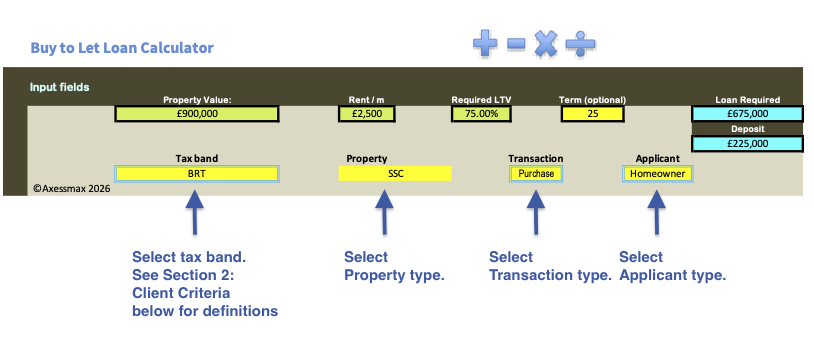
- Loan Requirement. Input as required Property Value, Rent, Loan to value needed and the term (required for capital repayment calculations).
Section 2: Client Criteria Selection
A. Applicant Tax Band – select applicable from drop down.
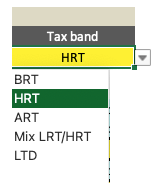
- BRT – Basic Rate or non tax payer.
- HRT – Higher Rate tax payer.
- Mixed – joint applications with different tax bands. Few lenders distinguish the difference. Majority do not.
- ART – Additional Rate tax payer.
- LTD – purchases under a Limited Company.
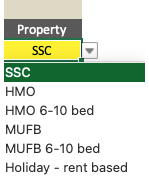
B. Property Type
- SSC – Single Self Contained Unit
- Holiday Let Rent based – Short term lets where the loan is based on rent received.
- HMO – House of multiple occupation up to 6 bedrooms.
- MUFB – Multi Unit Freehold blocks up to 6 units.
- HMO 7 – 10 : House of multiple occupation with 7 to 10 beds.
- MUFB 7 – 10 : Multi unit freehold blocks with 7 to 10 units.
C. Transaction Types
- Purchase: where the transaction is purchase of a new BTL property.
- Let to Buy Resi 2 BTL: this is a remortgage transaction where the home owner wants to let the current property as a buy to let and purchase a new home to reside.
- Remo w Capital: where an existing buy to let property is remortgaged to raise capital. Rates and Rental calculation is same as for purchase.
- Remo £ for £: remortgage without capital raising. Many lenders have reduced ICR and stress rates giving higher loan amounts.
- Remo Bridge B4 6m: Specially useful for auction purchase properties with or without refurbishing. Excludes inherited property.
D. Client Type
- Homeowner : owner occupiers with at least one other BTL property. Owner occupiers purchasing first buy to let, use FTLL option.
- Consumer BTL : also called “accidental” landlords. Owner occupiers who needs to move but cannot sell current property. Some lenders does not allow a BTL remortgage where the applicant has lived.
- Expat: UK resident / citizens living and working abroad.
- FTB : First Time Buyers, applicants who do not currently own any other property, including their own residential. There is only a restricted number of lenders for these clients.
- FTB with HO : joint applications where one applicant is a property owner and the other does not own any other property. Most BTL lenders with treat them as home owner but there are exceptions.
- FTLL : First time landlord. Owner occupier purchasing first BTL property. There are few lenders that only lend to experienced landlords.
- Portfolio LL – eliminates lenders that do not lender to investors with greater than 4 BTL properties.
- Regulated BTL : purchase of a BTL for family member to live.
A: Maximum Loan Table
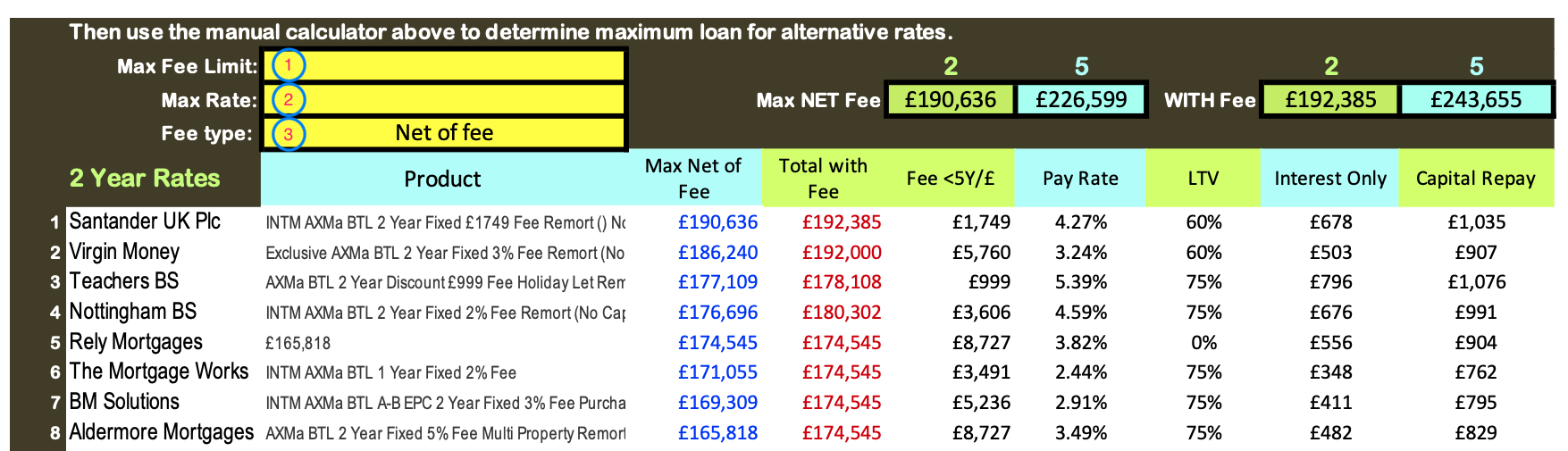
The maximum loan in general is based on the lenders lowest rate deal. Therefore, the corresponding fees tends to be the highest for the deal. Buy to let lenders tend to fall in to two primary groups. High street lenders and specialist lenders. Typically high street lenders are likely to have lower fees as they only accept mainstream clients and property. The two filters in the maximum loan table is used to distinguish those products.
1. Maximum Fee Limit: when the maximum loan is not needed, the lenders can be filtered by fee level.
2. Maximum Rate: If cashflow is important and the rate needs to be low, use this filter to set the acceptable rate.
3. Fee type: Arranges / filters the lenders based on either Net of Fee or Total with Fee.
Product column – pay attention to the products. Maximum loan for one product may not be available for the another with same lender. For example some lenders restrict maximum loan to only Remortgages with No Capital Raising. Therefore, remortgages with capital or purchases will have a lower maximum loan. Once a lender is identified, use the Whole Market Product Search to obtain all the suitable rates with loan and fees for the lenders.
Maximum loan net of fee – indicates the loan net of fees. Determines if fees can be added to loan.
Maximum is limited by three factors, the rent, ICR and lenders default rate. There are two types of lenders when it comes to adding fees to lender.
i. Those that will limit the total borrowing to the LTV limit, i.e. loan + fee <= LTV
ii. Lenders that allow fees to be added on top of LTV limit, i.e loan = LTV + fees
IMPORTANCE: At low rent, reduced maximum loan will impact on the ability to add fees to loan.
Total with Fees – Total loan with fees added. Monthly payments for both interest only and Capital Repayment on the maximum loan comparison tables are based on Total with Fees. However. The list can be arrange with or without fees using the fields [1] & [2]. Whole Market Comparison tool also allows the user to select the total loan based on with or without fees and then obtain monthly payments for both options.
B: Individual Lender search.
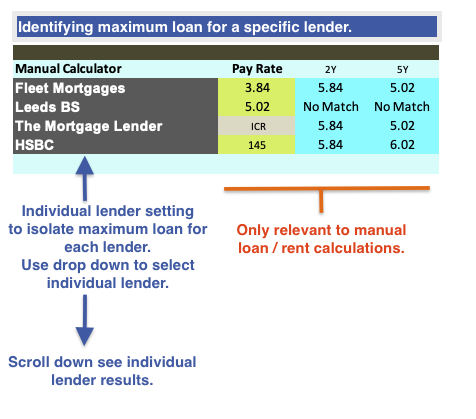

This section allows users identify the maximum loan for specific selected group of lenders. So instead of having to search through the whole list of lenders, users can compare up to four selected lenders for convenience. The lenders are selected from the drop down under “Manual Calculator” header. The selected lenders are colour coded and are also highlighted in the full table. Which allows users to compare the selection with other lenders. Important if the loan levels from the selected lenders are insufficient.
C. Whole Market Lender Search
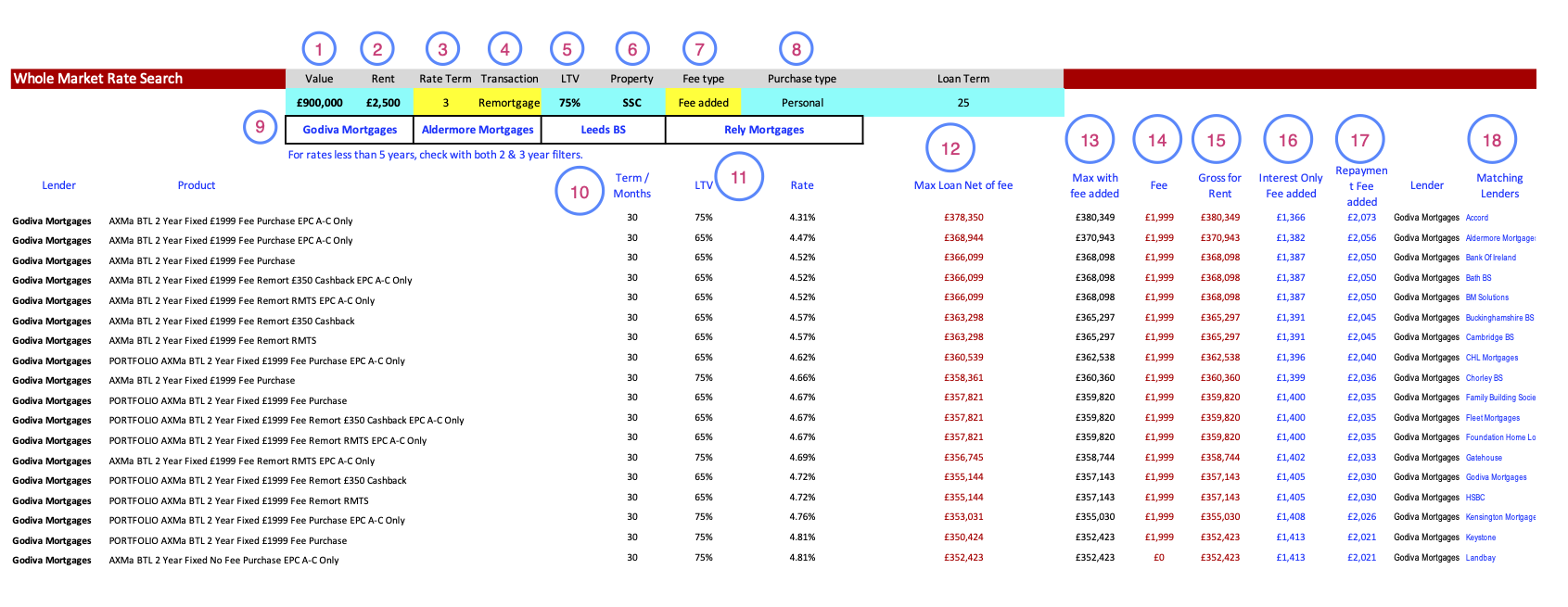
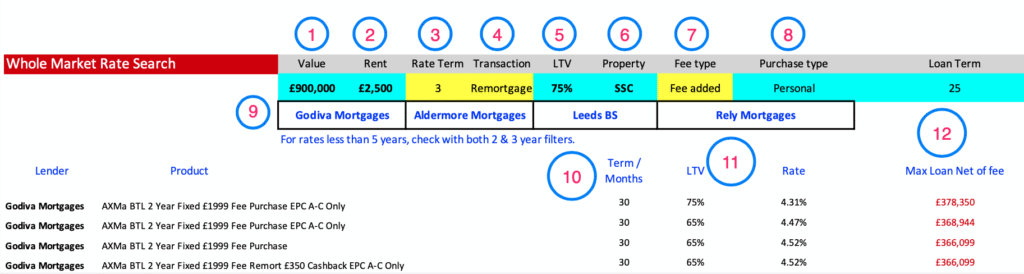
Fields 1,2, 5,6,8 and Loan Term are as set initially by the user at the Loan Requirement fields. Not editable on this section. To edit go to Input Fields at start.
Field 3, 4 and 7 are editable. Field 3 allows selection for rate term. For less than 5 year terms, search with both 2 & 3 year setting. Field 4 is transaction type setting . Field 7 sets fee preference selection (monthly payments will adjust as set).
Set of Fields corresponding to 9, allows selection of up to 4 lenders to be selected for comparison.
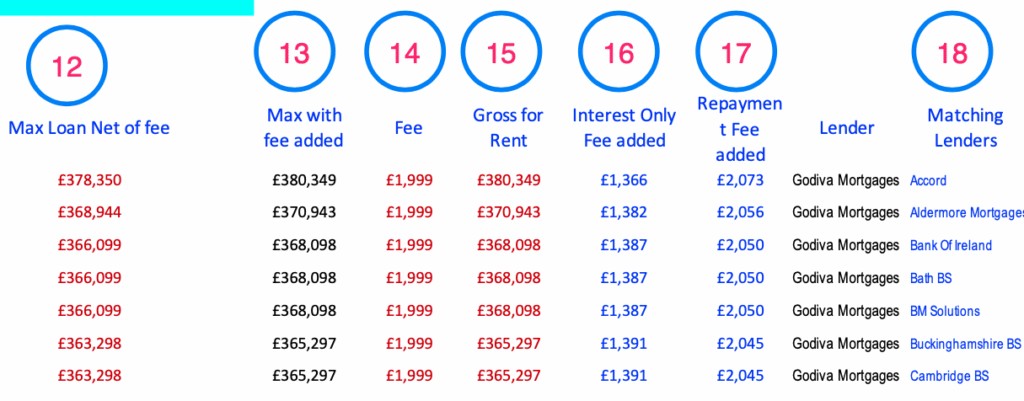
Fields 12, 13 and 15 are loan availability columns. It is important to understand what they relate to.
Max Loan Net of fee: explained above.
Max with fee added: explained above.
Gross for rent (gross loan for rent): Total possible lending available for each product purely based on rent.
Fields 16 & 17: monthly payments based on the Fee Type setting (7). Shows payment with fee or without fee.
Field 18: The list of lenders that match criteria for convenience.
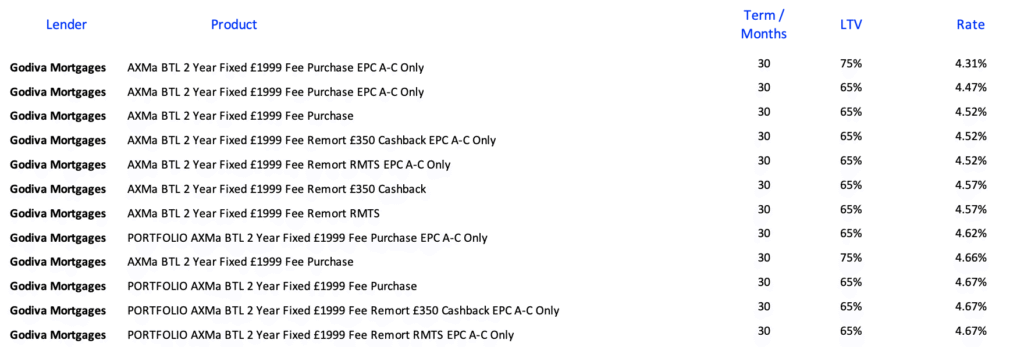
Above highlights how rates differ based on the transaction type. With this lender the lowest rates and hence the highest loan, will be restricted to properties with EPC rating A-C only.
D. Full Lender Range with All rates
stepped rates
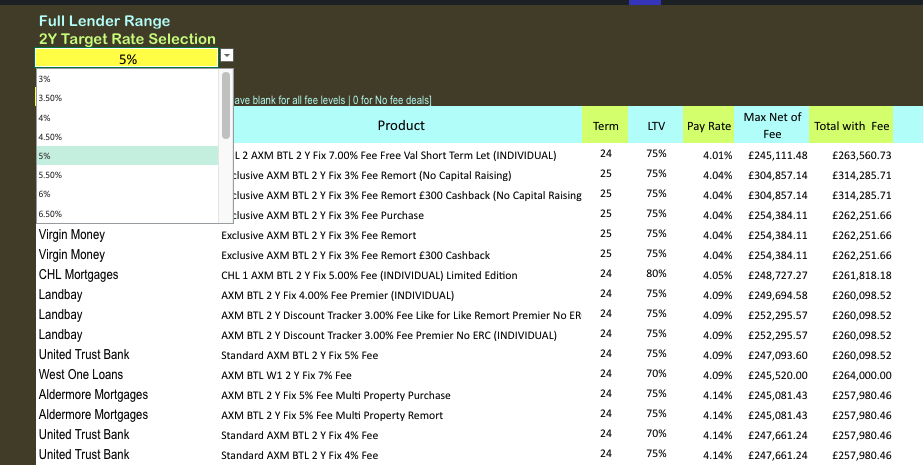
Targe Rate is the maximum preferred rate. Then use the Rate range selection to set the target of how far below.
Rate Range Setting
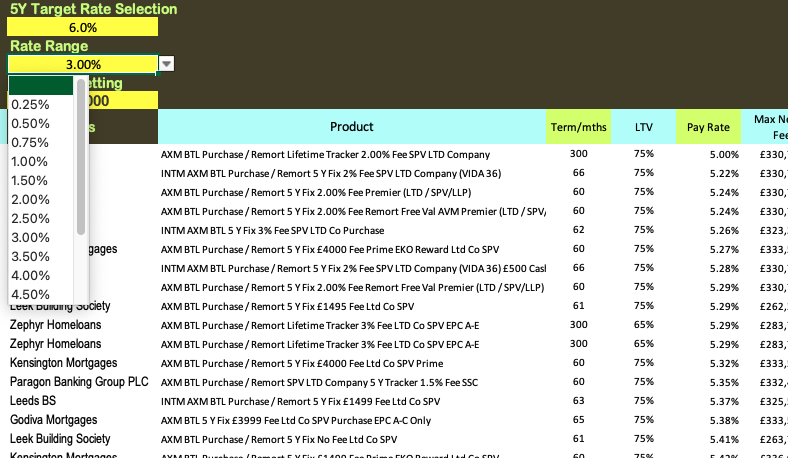
Rate range setting is used to set the range spread of the rate you want to analyse. It is Target Rate – Rate Range [e.g. 6% – 3% in above example]. This will filter the products between interest rates of 3% to 6%. For example if Rate Range = 1%, the products displayed are between 5% to 6%.
D : Visual guide to distribution of loan in relation to fees

Graph1: Loan vs Fees – 2 year fixed rates. Shows for each 1% increase (up to 8%) in fees how the maximum loan varies.
Example based on Property: £550,000 / Rent: £1900 / LTV: 75% / Term: 25y / Client type: Experienced Landlord / Transaction: Purchase / Tax Band: LTD / Property type: Single Self Contained Unit
These visual guides are to help you to identify best possible loan based on the lowest fee. It also gives an indicator what to set the maximum fee filter. For example (from above graph) if the loan required is under 268,000 setting the “fee filter” to 7000 (2% fee) will generate all the lenders under this fee only.

Graph2: Loan vs Fees – 5 year fixed rates. Shows comparable results for the above example for 5 Year fixed rates. Provides a quick visual guide to available loan for each percentage of fee.

Graph3: Loan vs Fees – 5 year fixed rates for the same property as above but borrowing a lower loan.
In this image it can be easily visualised that for a lower loan/ LTV the required loan is achieved at a much lower fee, however, possibly with a higher rate.